




🚀 The Launch Sequence: A Definitive How-To Guide to Downloading and Setting Up Rocket League
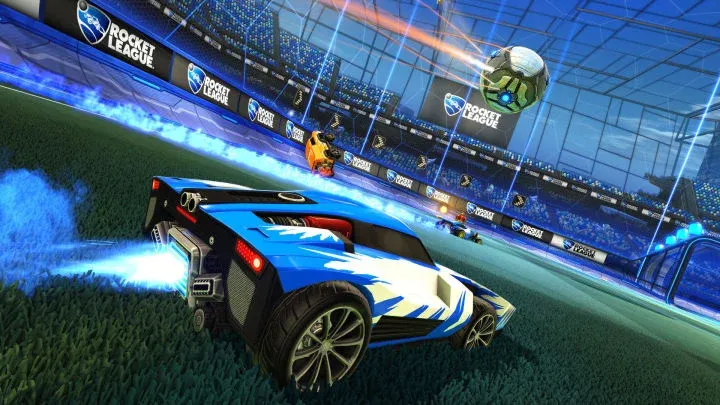
Rocket League is a phenomenon—a deceptively simple fusion of high-octane racing and tactical soccer. Since shifting to a free-to-play (F2P) model, the game has become universally accessible, welcoming millions of players across all major platforms. While the gameplay itself is pure skill and physics, the initial barrier to entry—downloading, installing, and correctly configuring the game and its controls—is a critical process that often determines a player's early experience. A smooth download and correct settings optimization are the foundational first steps to mastering aerials and wall shots.
This expert guide provides a structured, step-by-step roadmap detailing exactly how to acquire, install, and optimize Rocket League on the primary gaming systems, ensuring your first touch on the virtual pitch is perfectly tuned for competitive success.
💻 Phase I: Platform Selection and Download (Acquisition)
The first step is identifying the correct digital storefront based on your chosen gaming platform and initiating the download process.
1. PC Acquisition: The Epic Games Store Mandate
Following its transition to F2P, the primary and mandatory storefront for Rocket League on PC is the Epic Games Store (EGS). The game is no longer available for purchase or download on Steam for new users.
- Account Creation and Client Download: If you do not have an Epic Games account, you must first create one on the Epic Games website. Download and install the Epic Games Launcher.
- Locating the Game: Open the Epic Games Launcher, navigate to the Store section, and search for "Rocket League." The game will be listed with a price of Free. Click the "Get" button and follow the prompts to add it to your library.
- Pros of EGS: Direct access to all current F2P content and the game's core file structure for potential mods (though use caution).
- Cons of EGS: Requires a separate launcher, which some PC players prefer to avoid.
2. Console Acquisition: Platform-Specific Storefronts
The download process on consoles is integrated into the system's native digital marketplace, offering a seamless experience.
PlayStation and Xbox
- Navigate to the Store: On PlayStation (PSN Store) or Xbox (Microsoft Store), navigate to the search function.
- Search and Download: Search for "Rocket League." Since the game is F2P, select the main title listing, which will show a price of Free or Get.
- Initiate Download: Confirm the transaction (no payment details required) and the download will begin, adding the game to your queue or library immediately.
3. System Requirements and Storage Allocation
Before clicking download, always verify that your system meets the minimum required specifications and has sufficient free storage space.
- PC Requirements (H4: Minimum Specs Checklist):
- OS: Windows 7 (64-bit) or newer
- Processor: Dual Core 2.5 GHz
- Memory: 4 GB RAM
- Graphics: NVIDIA GeForce GTX 760, AMD Radeon R7 270X, or better
- Storage Check: While the core Rocket League download is relatively small (typically under 15 GB), ensure you have ample free space. The game frequently receives large updates with new seasons and content, requiring additional storage over time.
💾 Phase II: Installation and Initial Setup
The installation phase requires connecting your platform to the required Rocket League ecosystem and performing mandatory first-time procedures.
4. Cross-Platform Account Linking (Epic ID)
Because Rocket League supports full cross-platform progression and cross-play, every player, regardless of platform, must link or create an Epic Games Account.
- First Launch Prompt: Upon the very first launch, the game will prompt you to link to an existing Epic Games Account or create a new one. Do not skip this step.
- Linking Benefits (Pros/Cons):
- Pros: Enables shared inventory, XP progression, and competitive rank across all platforms (PC, Xbox, PlayStation).
- Cons: Requires managing a secondary account (Epic ID) separate from your native console account (PSN or Xbox Live).
5. Mandatory Tutorial and Boot Camp
The game forces every new player through a mandatory tutorial and basic training sequence. Use this time wisely to internalize the physics.
- The Basic Controls: Focus on the controls for Jump, Boost, Handbrake (Powerslide), and Aerial Camera (Ball Cam). These four inputs are the absolute foundation of all advanced mechanics.
- The Physics Engine: The tutorial is your first introduction to Rocket League's unique physics. Pay close attention to how your car interacts with the ball and the arena walls. Unlike most racing games, the car's weight, jump height, and mid-air rotation (Air Roll) are heavily simulated.
🎮 Phase III: Control Optimization (The Path to Elite)
The default control scheme is highly inefficient for competitive play. Immediately remapping key bindings is the single most important pre-game step.
6. The Non-Negotiable Control Remap (Powerslide & Air Roll)
The default binding for Powerslide and Air Roll (usually X or Square) requires you to lift your thumb off the Boost button (Circle/B) to use them, which is catastrophic for competitive play.
- The Expert Setup: Remap Powerslide and Air Roll to a comfortable shoulder button (L1/LB or R1/RB) that allows your thumb to remain firmly pressed on Boost (R2/RT or R1/RB).
- Example: Move Boost to R1/RB and Air Roll/Powerslide to L1/LB. This allows for simultaneous boosting and turning/rolling, the essence of advanced mechanics.
7. Analog Stick Sensitivity and Deadzone
The game’s default sensitivity can feel sluggish or overly aggressive, depending on your controller. Adjusting these settings significantly improves the precision of your aiming and aerial control.
- Controller Deadzone (H4: Minimizing Stick Drift): This setting determines how far you must move the analog stick before the game registers the input. A lower Deadzone increases responsiveness but can cause "stick drift." Expert players aim for a low value (typically 0.05 to 0.10) to achieve maximum precision.
- Steering and Aerial Sensitivity: Increase these values gradually (default is 1.0) to allow for faster, more precise adjustments to your car's direction and angle, especially during high-speed aerials. Most pros use values between 1.20 and 1.60.
📺 Phase IV: Visual and Performance Tuning
Optimizing the in-game display and camera settings provides critical awareness and performance stability.
8. Camera Settings: The Pro Configuration
The camera settings dictate how much you see, and an optimal view is crucial for tracking the ball and anticipating opponent movements.
- Field of View (FOV): Set this to the maximum value (usually 110). A high FOV gives you the widest peripheral vision, allowing you to see teammates and opponents without having to constantly swivel the camera.
- Distance and Height: Reduce the Camera Distance and Camera Height slightly from the default to give a clearer view of your car and the ball's immediate trajectory.
9. Performance Optimization (Frame Rate Focus)
On PC, ensuring the highest stable frame rate (FPS) is the single best way to improve reaction time and accuracy.
- Disable V-Sync: In the video settings, turn off V-Sync and Motion Blur. These settings can introduce input lag, even on high-end systems.
- Target High FPS: Set your Frame Rate Limit to match or exceed your monitor’s refresh rate (e.g., 144 FPS for a 144Hz monitor). A higher FPS provides a smoother visual representation of the game, making the precise timing required for fast mechanics easier to achieve.
🎓 Phase V: Post-Setup and First Steps
With the game downloaded and settings optimized, you are ready for the pitch—but not immediately for ranked play.
10. Training Integration and Skill Development
Your first hours should be dedicated entirely to the training modes.
- Free Play (The Warm-up): Spend 10-15 minutes in Free Play mode before every session. This allows you to constantly hit the ball, practice control, and internalize the car's physics without the pressure of a live match.
- Custom Training Packs: Access the Custom Training tab and search for popular community-created packs focused on core skills: Defense, Aerial Shots, and Power Shots. These provide structured, repeatable drills that build muscle memory far faster than live matches.
⭐ Conclusion: Ready for Kickoff
Downloading and setting up Rocket League is a process that goes far beyond simply clicking 'install.' By acquiring the game on the appropriate storefront, linking your cross-platform identity, and most crucially, optimizing your control bindings for simultaneous Boost/Air Roll usage, you have successfully completed the foundational phase of your journey. With a high FPS, a wide FOV, and low deadzone settings, your mechanical ceiling is now maximized. Your car is tuned, your systems are aligned, and the pitch is waiting. The time for training and mastery has begun.
Overall Expert Rating: 4.7/5 Stars (Seamless F2P Download, Crucial But Non-Intuitive Setup Requirements)
Pros (Download & Setup):
- Free-to-Play: Zero cost barrier to entry across all platforms.
- Full Cross-Progression: Seamlessly transfer inventory and rank via Epic ID.
- Low System Requirements: Accessible on a wide range of devices.
Cons (Download & Setup):
- Mandatory EGS: PC users must use the Epic Games Store, not Steam.
- Non-Intuitive Controls: Default control scheme must be remapped for competitive play.
- Account Linking Required: Adds a layer of setup complexity for console users.